If you’re connecting a website that already sells food to a Clover till that already has a menu, you have the same item in two places — twice over, for every product. Your “Margherita Pizza” and Clover’s “Margherita” are the same pizza, but neither system knows that.
Mapping is what tells them. This guide explains how to map WooCommerce products to Clover items, when to do it, and what to do about the ones that don’t match.
What mapping actually does
When DineSync maps a product, it stores the Clover item’s ID on your WooCommerce product. That link is what makes everything else work:
- an import updates that product instead of creating another one
- saving the product sends the change to that Clover item
- an order for it arrives in Clover as the right item
Without the link, each system treats the other’s items as new. That’s how menus end up with duplicates.
When to map
Before your first import, if your website already has products. This is the big one — importing first is the most common cause of a duplicated menu.
After a bulk product import, if you’ve loaded products into WooCommerce from a spreadsheet or another plugin.
When you’ve added items on both sides, which happens in most restaurants eventually.
After a clean-up, when you’ve deleted duplicates and want the originals linked again.
How matching works
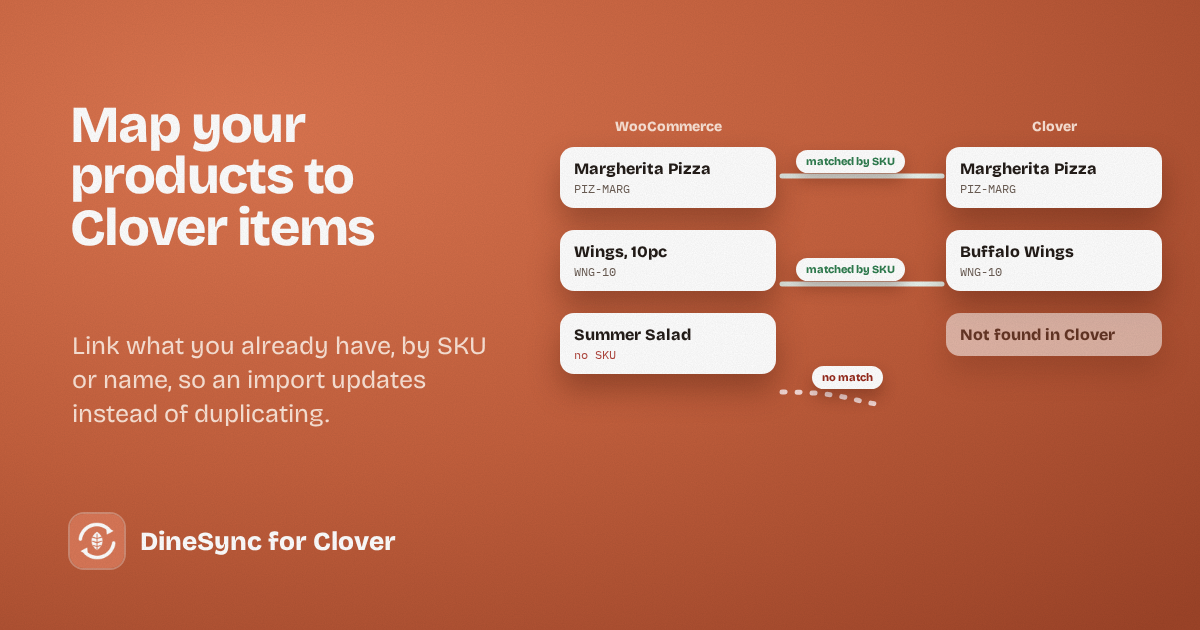
Press Map Clover Items in DineSync → Settings. DineSync compares your WooCommerce products with your Clover items and links each pair it’s confident about:
- By SKU first. If a WooCommerce product and a Clover item share a SKU, that’s a match. This is the reliable one.
- By name second. Where SKUs are missing, DineSync matches on the item name.
When it finishes, you get a summary — how many were newly mapped, how many were already mapped, and how many had no match at all.
Reading the result
“Already mapped” means the link was there from a previous run. Running mapping again is safe; it doesn’t duplicate or reshuffle anything.
“No match” is the number to pay attention to. Each one is a product DineSync couldn’t confidently pair with a Clover item. Usually it’s one of:
- the names differ — “Margherita Pizza” on the website, “Cheese Pizza” on the till
- the SKUs differ, or one side has none
- the item genuinely only exists on one system
Fixing the ones with no match
If it exists in both places, make one field agree and run mapping again. Giving both the same SKU is the most reliable fix, and it stops the pair drifting apart later.
If it only exists in Clover, run Import from Clover and it’s created on your website.
If it only exists in WooCommerce, save the product or run Push to Clover, and it’s created on the till.
A habit worth adopting: SKUs on everything
Names change. Someone renames “Chicken Wings” to “Buffalo Wings” for a promotion, and the pair quietly comes apart.
A SKU doesn’t change. Even a simple scheme is enough:
PIZ-MARG    Margherita Pizza
PIZ-PEP     Pepperoni Pizza
WNG-10      Wings, 10pc
SIDE-FRIES  Fries
Set them once in Clover, import, and both systems share the same codes from then on. Mapping becomes reliable, and your reports get easier to read too.
If the links get tangled
Clean & Re-Sync clears every link between your website and Clover — Clover item IDs, sync timestamps and tracking data. It does not delete any product, order or customer. It’s a reset for the connection, not for your menu.
Use it when mapping has drifted badly, then map again from a clean start.
Keeping the links healthy
Links break over time. An item gets deleted in Clover but its product stays on your website, still pointing at something that isn’t there. Prices drift apart on pairs that look linked. Duplicates appear from a single unmapped import months ago.
DineSync Pro’s duplicate finder reports exactly that: duplicate items and SKUs, price mismatches between linked products, duplicate modifiers, and links pointing at Clover items that no longer exist. It’s read-only — it shows you where to look and changes nothing.
Pro also brings Clover menu changes across automatically, and alerts you when an order doesn’t reach your till. It costs $69.99 a month or $499.99 a year, with a 14-day free trial and no card needed.
Get started
Install DineSync for Clover free → https://wordpress.org/plugins/dinesync-for-clover/
Try DineSync Pro free → https://monirtechsolutions.com/plugins/dinesync-for-clover/get-pro/?utm_source=blog&utm_medium=article&utm_campaign=mapping