Changing one price is easy. Changing forty items, retiring a dozen, and adding a new seasonal range is a different job — and it’s the one where restaurants end up with a website showing last season’s specials, or a till full of items nobody can find.
Here’s a safe order of operations for a seasonal menu update across Clover and your WooCommerce website.
Pick a quiet time, and one place to work
Do this on a Monday morning, not at four on a Friday. You want space to check your work.
Then decide which system is the source of truth for this update. Most restaurants build the new menu in Clover — it’s where the till, the reports and the kitchen already live — and let the website follow. Others prefer to write the new items on the website first, with better descriptions, and push them to the till.
Either is fine. What causes trouble is doing half in each.
The safe order
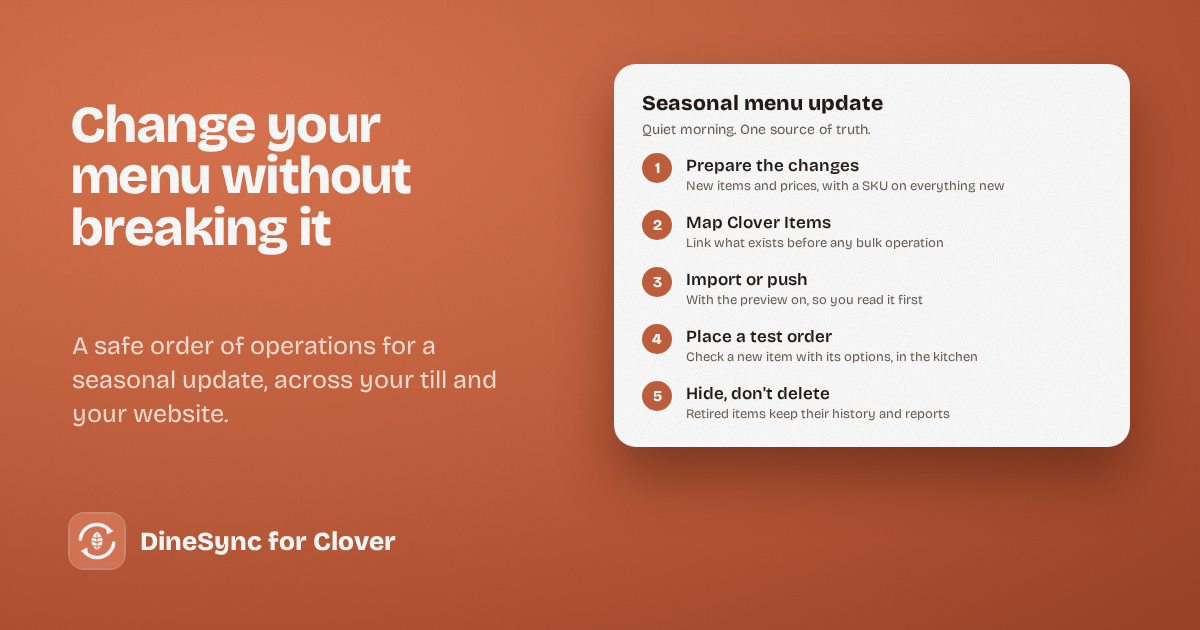
1. Prepare the changes in your chosen system. New items, new prices, new modifier groups. Give every new item a SKU while you’re there — it’s the thing that keeps both systems matched later.
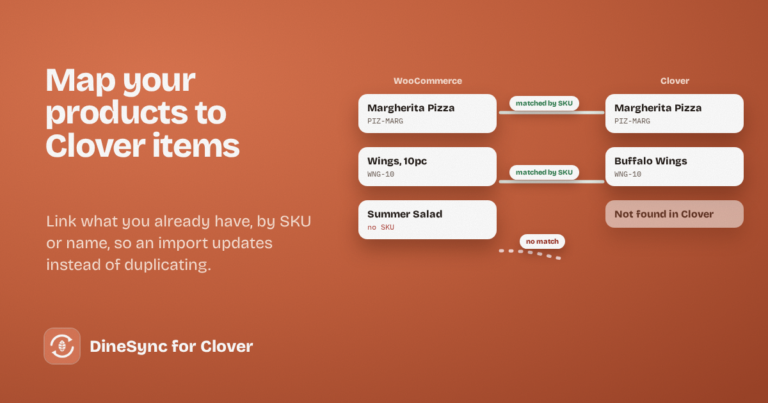
2. Make sure existing items are linked. Run Map Clover Items before any bulk operation. It links products to their Clover items by SKU or name, so the update changes the items you mean rather than creating new copies.
3. Bring the changes across. If you built the menu in Clover, press Import from Clover. If you built it on the website, use Push to Clover — with Pro’s preview on, so you can read the list before it lands on the till.
4. Place a test order. Order a new item with its options from your own website, pay for it, and check the ticket in your kitchen. Modifiers are where seasonal items go wrong most often.
5. Check the result. Look at a handful of items on both systems, especially anything with sizes or toppings.
Retiring last season’s items
This is where most damage happens, so it’s worth being careful.
Hide rather than delete. In Clover, marking an item hidden keeps its history and its sales reports intact, and DineSync skips hidden items on import — so it disappears from your website without anything being destroyed.
If you delete a Clover item, any WooCommerce product still linked to it is pointing at something that no longer exists. The product stays on your website, but it’s no longer connected to anything on the till. Deleting is fine when you’re sure; just know that it leaves loose ends to tidy.
On the website, set the retired product to draft or out of stock rather than deleting it. Next spring, you’ll want it back — and its URL may already have search traffic and links pointing at it.
The mistake to avoid
The tempting shortcut is to tidy your website menu while you’re at it — renaming things, adjusting a few prices, half-finishing a new item — then press Push to Clover to make the till match.
Everything goes. The deliberate changes and the half-finished ones. Your till gets item names your cooks don’t recognise, and undoing it means fixing each one by hand.
Two things that make this easier
Push preview (Pro). Before a bulk push runs, Pro lists what’s about to be sent — names, SKUs, prices and categories — and lets you untick anything that shouldn’t go. On a seasonal update, that’s the difference between confidence and hoping.
The duplicate finder (Pro). Run it the day after. It reports duplicate items and SKUs, price mismatches between linked products, duplicate modifiers, and links pointing at Clover items that no longer exist — which is exactly what a big retire-and-replace leaves behind. It’s read-only and changes nothing.
Pro also keeps Clover changes flowing to your website automatically and alerts you when an order doesn’t reach your till. It costs $69.99 a month or $499.99 a year, with a 14-day free trial and no card needed.
A checklist to keep
- Quiet morning, one source of truth
- Prepare changes, SKUs on everything new
- Map Clover Items
- Import or push — with preview, if you have Pro
- Test order with modifiers, checked in the kitchen
- Hide retired items rather than deleting them
- Duplicate finder scan the next day
Get started
Install DineSync for Clover free → https://wordpress.org/plugins/dinesync-for-clover/
Try DineSync Pro free → https://monirtechsolutions.com/plugins/dinesync-for-clover/get-pro/?utm_source=blog&utm_medium=article&utm_campaign=seasonal-update