Once your website and your Clover till are connected, a new question appears: how often should the website look for changes?
Check constantly and you’re making work for no reason. Check rarely and you’re selling last week’s prices. The right answer depends on how often your menu actually moves — and on one detail about how WordPress schedules things that’s worth understanding before you choose.
Here’s how to decide how often to sync your Clover menu.
What a check actually does
With DineSync Pro’s automatic sync switched on, your website asks Clover a simple question on a schedule: has anything changed since last time?
If nothing has, the check finishes in a fraction of a second and nothing happens. If something has — a price, a new item, a modifier — those changes are imported into WooCommerce.
So a frequent schedule isn’t expensive when your menu is quiet. Most checks find nothing and cost almost nothing.
The four intervals
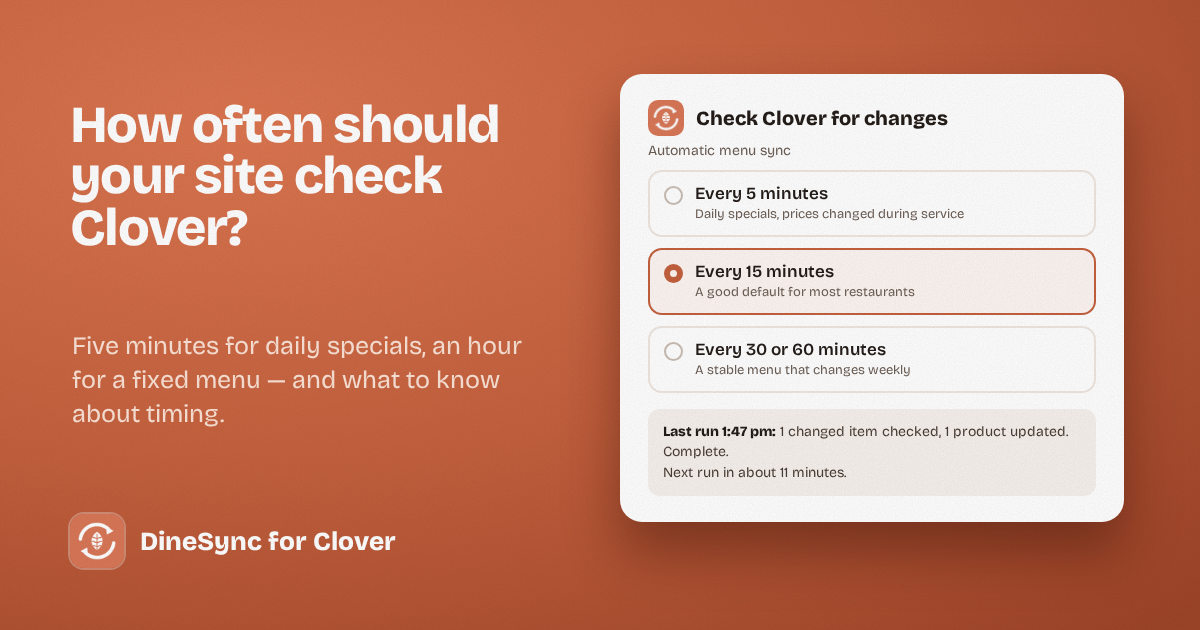
Pro offers every 5, 15, 30 or 60 minutes. Five minutes is the shortest, deliberately — it’s frequent enough for a restaurant and it keeps the plugin a good citizen on your website’s resources.
Every 5 minutes suits restaurants where the menu moves during service: daily specials, items that sell out, prices adjusted on the fly, or more than one person editing the till.
Every 15 minutes is the sensible default for most restaurants. Change a price at the counter and your website has it before the next rush.
Every 30 or 60 minutes suits a stable menu that changes weekly rather than daily — a fixed list where the occasional price change isn’t urgent.
There’s also Run once now, for when you’ve just changed something and want it live immediately.
The WordPress detail worth knowing
Here’s the part many plugins gloss over.
WordPress doesn’t have a real clock running in the background. Its scheduler wakes up when someone visits your site. If your site is busy, that’s near enough continuous, and a 5-minute interval behaves like 5 minutes.
On a quiet site — say, mid-afternoon on a Tuesday, when nobody is browsing your menu — nothing wakes it up, and a “5 minute” check might actually run after 40 minutes. When the next visitor arrives, it catches up.
For most restaurants this is fine, because the moments you care about are the busy ones. But if you want your interval to be exact, ask your web host to set up a real cron job that calls your site’s scheduler every few minutes. It takes them a few minutes, most hosts do it for free, and after that your schedule runs to the clock whether anyone is browsing or not.
It’s worth asking for if you run frequent specials.
Picking your interval
Ask one question: how long can your website show a wrong price before it costs you?
- A pizza place changing topping prices during service — 5 minutes
- A restaurant that adjusts prices weekly — 15 or 30 minutes
- A fixed menu that changes with the seasons — 60 minutes, or import by hand when you change it
You can change the setting at any time, so start at 15 and adjust once you see how often your menu really moves.
When a check fails
This matters more than the interval.
If Clover has a problem mid-check, DineSync Pro holds its place rather than moving on. The changes in that window get tried again on the next run instead of being skipped — because a price change that’s silently missed is worse than one that arrives a few minutes late.
If checks keep failing, the sync log says so plainly, so a stalled connection doesn’t sit there unnoticed.
What automatic sync doesn’t do
Automatic sync brings Clover’s changes to your website. It’s off until you switch it on, and it runs in one direction.
Changes you make on your website go the other way — sent to Clover when you save a product, as usual. That side doesn’t need a schedule; it’s immediate.
Get it running
Automatic menu sync is part of DineSync Pro, which also includes failed-order alerts with one-click retry, a preview before bulk pushes, and a duplicate finder. It costs $69.99 a month or $499.99 a year, with a 14-day free trial and no card needed.
The free plugin imports whenever you press the button, which is plenty if your menu rarely changes.
Install DineSync for Clover free → https://wordpress.org/plugins/dinesync-for-clover/
Try DineSync Pro free → https://monirtechsolutions.com/plugins/dinesync-for-clover/get-pro/?utm_source=blog&utm_medium=article&utm_campaign=sync-interval