Getting started
DineSync for Clover connects an existing WooCommerce store to a Clover POS. Orders placed on your website are sent to your Clover as they happen, and your Clover menu can be brought into WooCommerce whenever you need it. Your products, customers, payment gateways and shipping methods stay exactly where they are.
This guide covers installation, connecting your Clover account, and every feature in the free plugin, followed by what DineSync Pro adds.
Free setup
We'll connect DineSync to your Clover account, import your menu, set up your modifiers and kitchen printing, and run test orders with you before you go live — at no cost. Email info@monirtechsolutions.com with your site and your Clover setup to get started.
Installation
- In your WordPress admin, go to Plugins > Add New and search for "DineSync for Clover", or upload the
dinesync-for-clover folder to /wp-content/plugins/.
- Activate the plugin through the Plugins menu.
- Go to DineSync in the admin menu. Until you connect, the dashboard shows a short getting-started checklist.
WooCommerce must be installed and active.
Connecting to Clover
DineSync connects to Clover with your Merchant ID and an API token. You generate both in your own Clover account, which means the connection is yours and nothing passes through a third-party service.
- In your Clover dashboard, create an API token with read and write access to inventory, orders, payments and printers.
- In WordPress, go to DineSync > Settings.
- Enter your Merchant ID and API Token.
- Choose your environment — Production for a live Clover account, Sandbox for testing.
- Click Save, then Test Connection.
Once connected, the dashboard shows a health view with your merchant name, a masked Merchant ID, and the date you connected. You can disconnect at any time from the settings page; disconnecting clears the stored credentials and leaves your products and orders untouched.
Order sync
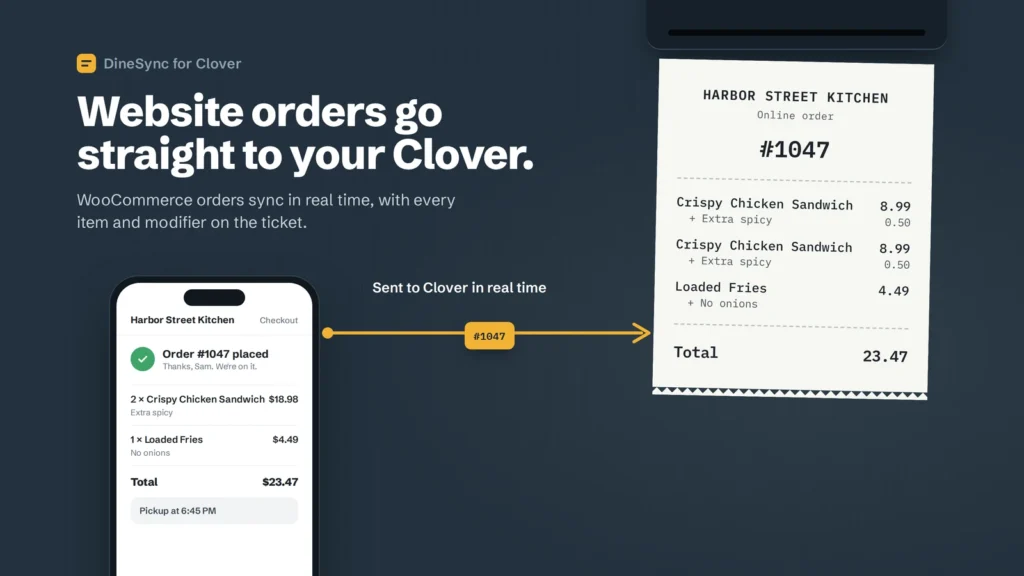
This is the part that runs on its own. When a customer places an order on your website:
- The order is created in WooCommerce as normal.
- DineSync sends it to your Clover straight away.
- The order appears on your Clover device with its line items, every modifier the customer selected, customer name, email and phone, plus fees, shipping and discounts.
- The order total is reconciled so what Clover shows matches what the customer paid.
- Payment is recorded on Clover so the order shows as paid. Cash-on-delivery orders are sent without a payment record.
- If auto-print is switched on, the order prints to your kitchen printer immediately.
Items ordered in quantities of more than one are sent as separate line items, so the kitchen ticket and your Clover reporting both show the correct counts.
Order sync works with both the WooCommerce classic checkout and the block-based checkout.
Order status
Status changes travel from WooCommerce to Clover:
- WooCommerce Completed becomes Fulfilled on Clover
- WooCommerce Cancelled becomes Cancelled on Clover
- WooCommerce Refunded becomes Cancelled on Clover
Status changes made on the Clover device do not travel back to WooCommerce.
When an order does not reach Clover
If an order fails to send — a network problem, an expired token, a Clover outage — DineSync records the failure on the order itself rather than losing it quietly. Open the order in WooCommerce and you will see a DineSync panel with the reason it failed and a
Sync to Clover button to send it again once the problem is fixed.
DineSync Pro adds email alerts so you find out without opening the order, and a single screen to retry every failed order at once.
Importing your menu from Clover
Go to
DineSync > Settings and use
Import from Clover under Inventory Actions.
The import brings in item names, prices, SKUs, categories and modifier groups, creating WooCommerce products for anything that does not exist yet. Items hidden on Clover are skipped. Short descriptions are written only when a product is first created, so your own wording is never overwritten later.
Existing products are matched by SKU first and then by name, so running the import repeatedly does not create duplicates.
Stock levels are not imported. A sale rung up on your Clover till does not reduce the stock figure on your website.
Pushing products to Clover
There are two ways to send WooCommerce products to Clover.
On save. Edit a product in WooCommerce and save it, and only the fields you actually changed are sent to Clover. If the product manages stock in WooCommerce, the stock figure goes across with it. A product that does not exist on Clover yet is created there, along with any categories it needs.
In bulk. Use
Push to Clover to send your catalogue in batches of thirty, which keeps you inside Clover's rate limits. Each product is matched by SKU and then by name before anything new is created. There is also a
Sync to Clover link on each row of the WooCommerce Products list for sending a single product on its own.
Mapping, full sync and clean re-sync
Map Clover Items links WooCommerce products you already have to matching Clover items by SKU or name. Run it after a bulk product import, or if you have been adding products on both systems separately. It is the safest thing to run first on an established store.
Full Sync runs mapping, then an import, then a push, in that order.
Clean & Re-Sync clears the stored links between the two systems — Clover item IDs, timestamps and change-tracking data. It does not delete any product or order. Use it when the mapping has drifted and you want to start the matching again from scratch.
Modifier groups
Clover modifier groups — sizes, toppings, extras — are imported and stored on the WooCommerce product, then rendered on your storefront as real options with prices that update as the customer chooses. Selections are validated before the item goes in the cart, priced in the cart, and sent through to Clover on the order.
DineSync detects which system your site uses and writes the modifiers in the right format:
- WooFood, if it is active
- WooCommerce Product Add-Ons, if it is active
- the built-in renderer otherwise, which needs no configuration
The active modifier system is shown on the settings page.
Auto-print and employee assignment
Switch on
Print orders on Clover kitchen printer automatically in Order Settings and choose a printer from the dropdown; use the refresh button to load the printer list from your Clover account. Orders then print the moment they are placed.
You can also assign online orders to a specific Clover employee, which keeps website orders separate from counter orders in your Clover reporting.
Auto-print is off by default. Order sync is on by default.
Settings reference
Connection — Merchant ID, API token, environment (Production or Sandbox), test connection, disconnect.
Sync settings — the master switch for order sync, a sync direction label, and per-field toggles for name, price, SKU, categories, stock, availability, description and modifiers. The field toggles govern what is sent to Clover when a product is saved or pushed. The import from Clover applies the modifier toggle but otherwise brings across everything it finds.
Order settings — auto-print, printer, default employee.
Inventory actions — Full Sync, Import from Clover, Push to Clover, Map Clover Items, Clean & Re-Sync. These run when you click them.
The dashboard also shows how many orders have synced, when the last order and last import happened, and how many products are currently mapped to Clover items.
Sync logs
Every sync operation is recorded under
DineSync > Sync Logs, with a timestamp, a level (success, info, warning or error), a description of what happened, and a link to the related order where there is one. You can filter by level, refresh, or clear the log. Entries older than thirty days are removed automatically.
When something is not behaving, this is the first place to look.
What DineSync Pro adds
The free plugin is the complete working product. Pro adds the things you cannot sit and watch for yourself.
Automatic menu sync. Your site asks Clover for changed items on a schedule you choose — as often as every five minutes, or every fifteen, thirty or sixty — and imports them without anyone pressing a button. A price you change on the till reaches your website on its own. There is also a "Run once now" button. Automatic sync is off until you switch it on, and it does not sync stock.
Alerts and recovery. Failed orders are queued and emailed to you, to as many recipients as you like. From the alerts screen you can retry one order, dismiss it, or retry everything at once.
Push preview. Before a bulk push runs, a preview shows you exactly which products are about to be sent, their SKUs, prices and categories, and whether each one will be created or updated on Clover. Untick anything you do not want to send. It is on by default.
Duplicate finder. A read-only report of duplicate names and SKUs on Clover, duplicate names in WooCommerce, price mismatches between mapped pairs, duplicate modifiers, and mappings pointing at items that no longer exist. It changes nothing on its own — it tells you where to look.
Pro requires DineSync for Clover 1.0.14 or newer, and automatic sync relies on WP-Cron being available on your site.
Installing DineSync Pro
Already purchased?
1. Make sure the free DineSync for Clover plugin (version 1.0.14 or later) is installed and active.
2. Download DineSync Pro from your receipt email.
3. In WordPress, go to Plugins → Add New → Upload Plugin, install the file and activate it.
4. Enter the license key from the same email. That's it.
What DineSync does not do
Worth knowing before you install:
- Stock does not come back from Clover. Stock is pushed from WooCommerce to Clover, but an in-store sale does not reduce your website stock.
- Order status travels one way, from WooCommerce to Clover.
- Item images are not synced. Clover's API has no surface for item images, so pictures are managed in WooCommerce.
- Menu changes on Clover are not instant in the free plugin. You press Import when you want them. Pro does it on a schedule.
Troubleshooting
Orders are not reaching Clover. Check the connection shows as connected on the settings page, confirm order sync is switched on, then open Sync Logs and look for red error entries. Open a recent order and check the DineSync panel for a failure reason.
The import brings nothing in. Confirm there are items in your Clover inventory and that they are not hidden. Check that your API token has inventory read permission. Review Sync Logs for the API response.
The push stops partway. Products go in batches of thirty. Check Sync Logs for API errors, which usually means a rate limit or a permissions problem on the token, and check the browser console for JavaScript errors.
Duplicate products after an import. Run Map Clover Items to link the originals by SKU or name. If duplicates were created, delete them and map again. For a clean start, use Clean & Re-Sync and then import.
Prices are not updating from Clover. The free plugin imports on demand — run Import from Clover. If you have Pro, check that automatic sync is switched on, that an interval is selected, and that WP-Cron is running on your site.
Modifiers are not appearing on the product page. Check which modifier system is shown on the settings page. If you have recently activated or deactivated WooFood or WC Product Add-Ons, re-run the import so the modifiers are written in the right format.
Free setup
We'll connect DineSync to your Clover account, import your menu, set up your modifiers and kitchen printing, and run test orders with you before you go live — at no cost. Email
info@monirtechsolutions.com with your site and your Clover setup to get started.