Most restaurants import their menu from Clover and manage it there. But plenty do it the other way round: the website is where prices get set, seasonal items get added, and descriptions get written — and Clover needs to follow.
This guide covers how to push WooCommerce products to Clover: what happens when you save a single product, how to send your whole menu at once, and how to avoid the mistake that makes people nervous about bulk changes.
When you save a product
With DineSync for Clover connected, saving a product in WooCommerce sends the change to Clover automatically.
Only the fields you actually changed are sent. Change a price and the price goes; the name, category and everything else stay as they are on the till. If the product doesn’t exist in Clover yet, it’s created there — along with its category, if that’s new too.
There’s also a Sync to Clover link on each row of your WooCommerce Products list, for sending one product without opening it.
Sending your whole menu
For bigger jobs, use Push to Clover in DineSync → Settings.
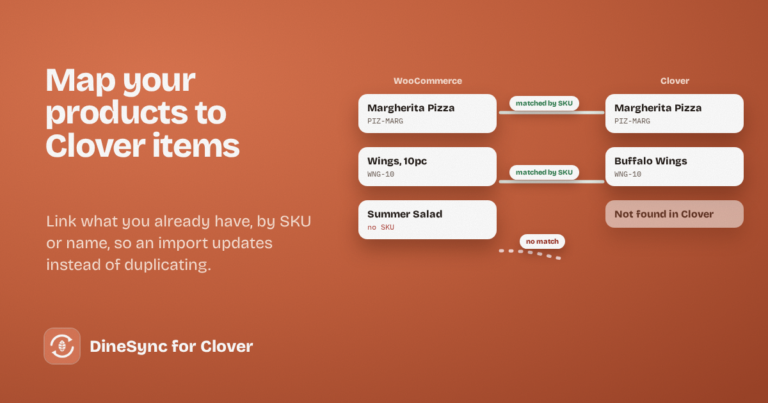
DineSync works through your products in batches of thirty, which keeps you inside Clover’s limits and stops the job timing out. Each product is matched to its Clover item by SKU first, then by name, so existing items are updated rather than duplicated. Anything Clover doesn’t have yet is created.
When it finishes, you get a count of what was pushed and any errors.
Choosing what gets sent
In Sync Settings, the Fields to Sync list controls what goes to Clover when a product is saved or pushed: name, price, SKU, categories, stock, availability, description and modifiers.
If you want your website to hold longer, more appetising descriptions than your till does, untick Description. If your stock is managed on Clover, untick Stock. Everything else carries on as normal.
A note about stock
DineSync won’t send Clover a stock number it hasn’t confirmed first.
The first time you save a product that DineSync hasn’t seen a stock value for, it reads Clover’s current count and adopts it rather than writing over it. Your genuine stock changes push normally after that. It’s a small safeguard that stops a website-side zero from wiping a real count at the till — and the sync log tells you when it happens.
Where bulk pushes go wrong
Pushing one product is easy to reason about. Pushing four hundred is not.
The classic bad afternoon goes like this: you’ve been tidying your website menu — renaming items, adjusting prices, changing a category — and then you press Push to Clover to make the till match. Some of those changes were deliberate. Some were half-finished. All of them go.
Now your till has item names your cooks don’t recognise, and undoing it means fixing each one by hand.
The free plugin does exactly what you ask it to. That’s the problem: on a big push, you can’t easily see what you’re asking for.
DineSync Pro shows you first
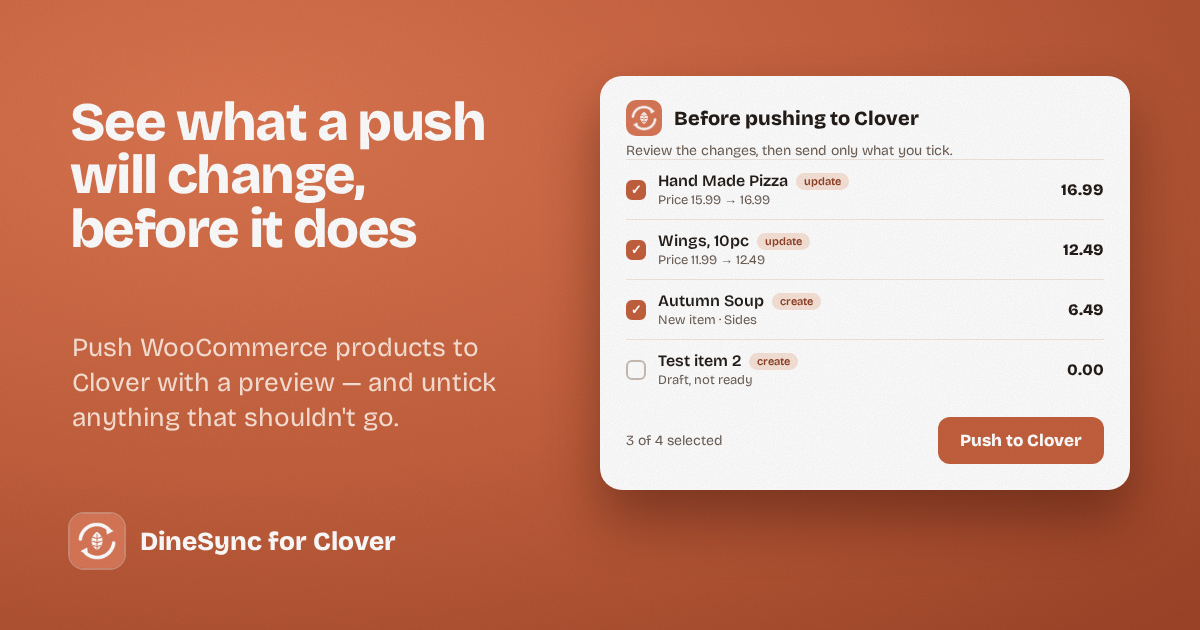
Push preview puts a step between the button and your till. Before a bulk push runs, Pro lists the products that are about to be sent, with their names, SKUs, prices and categories, so you can read the change before it happens.
Anything that shouldn’t go, you untick. Only what you’ve ticked is sent. It’s on by default, and you can turn it off if you’d rather push straight through.
For most restaurants, this is the difference between doing a menu update confidently and putting it off.
Pro also includes:
- Failed-order alerts with one-click retry, so a paid order never sits unnoticed
- Automatic menu sync, bringing Clover changes onto your website by itself
- A duplicate finder that reports duplicate items, price mismatches and broken links between the two systems
Pro costs $69.99 a month or $499.99 a year, with a 14-day free trial and no card needed.
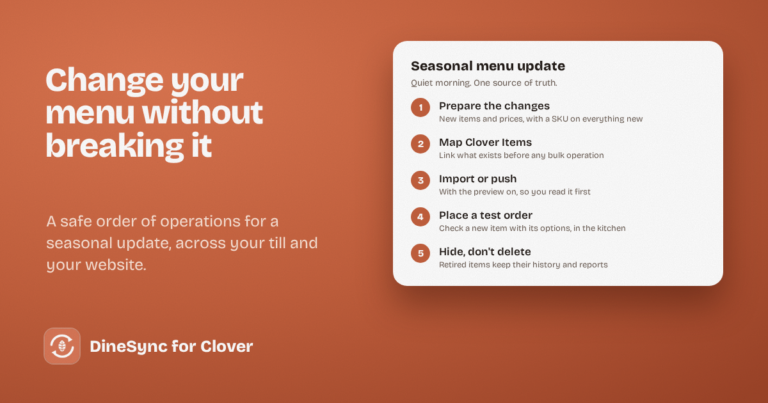
A safe routine for menu updates
- Make your changes on the website and check them on a product page.
- Push a single product first, with the row action, and confirm it looks right in Clover.
- Then run the bulk push — with the preview on, if you have Pro.
- Check a couple of items on the till afterwards, especially anything with modifiers.
Five extra minutes here saves an evening of repair work.
Get started
Install DineSync for Clover free → https://wordpress.org/plugins/dinesync-for-clover/
Try DineSync Pro free → https://monirtechsolutions.com/plugins/dinesync-for-clover/get-pro/?utm_source=blog&utm_medium=article&utm_campaign=push-preview