A pizza isn’t one product. It’s a size, a crust, a sauce, and a list of toppings — and the customer expects to choose all of it online, see the price change as they go, and get exactly what they picked.
In Clover, those choices are modifiers: groups of options attached to an item, like “Size” or “Toppings”, each with its own price. This guide explains how Clover modifiers work in WooCommerce with DineSync for Clover — from your product page to the kitchen ticket — and how to keep a big topping menu tidy.
How modifiers come across from Clover
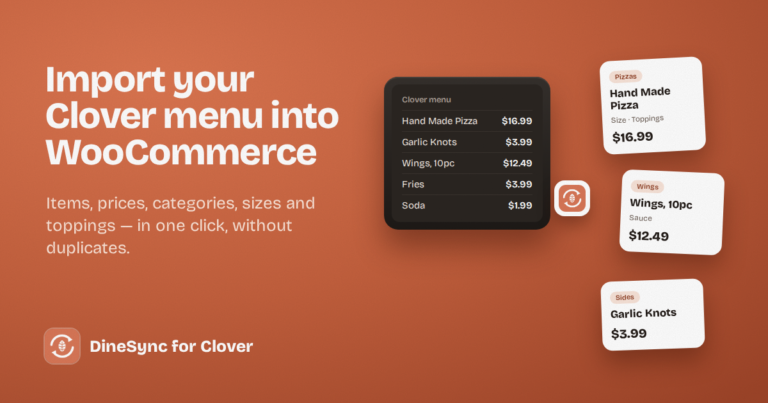
When you import your Clover menu with DineSync, each item’s modifier groups come across with it. A pizza with a “Size” group and a “Toppings” group arrives on your website with both, including every option and its price.
You don’t rebuild them in WordPress. The options on your product page are the same options your staff use at the counter.
What customers see on your product page
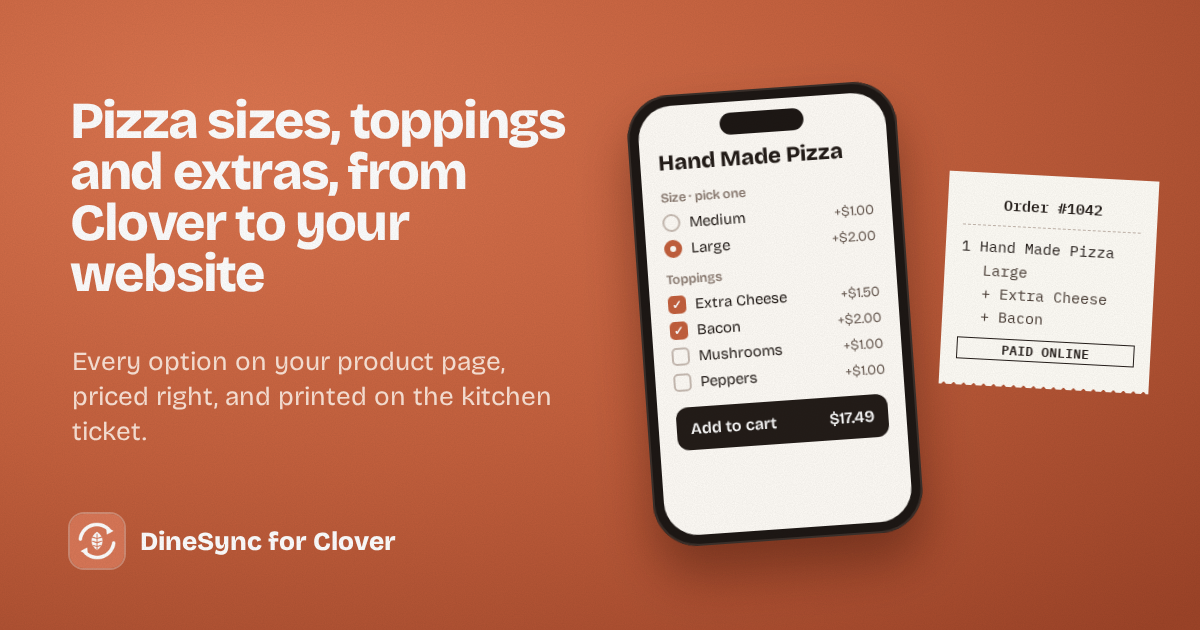
Each modifier group becomes a real choice on the product page:
- Pick one groups, like size, show as options where the customer chooses a single answer
- Pick several groups, like toppings, let the customer tick as many as they want
- The price updates as they choose, so a large pizza with extra cheese and bacon shows its real total before it goes in the cart
Selections are checked before the item goes in the cart and priced correctly at checkout.
Works with the ordering plugin you already use
Many restaurant websites already use a plugin for product options. DineSync detects which one you have and writes your Clover modifiers in its format:
- WooFood, if it’s active
- WooCommerce Product Add-Ons, if it’s active
- A built-in option display, if you use neither — no setup needed
The active system is shown on your DineSync settings page, so you always know which one is in charge.
From the website to the kitchen ticket
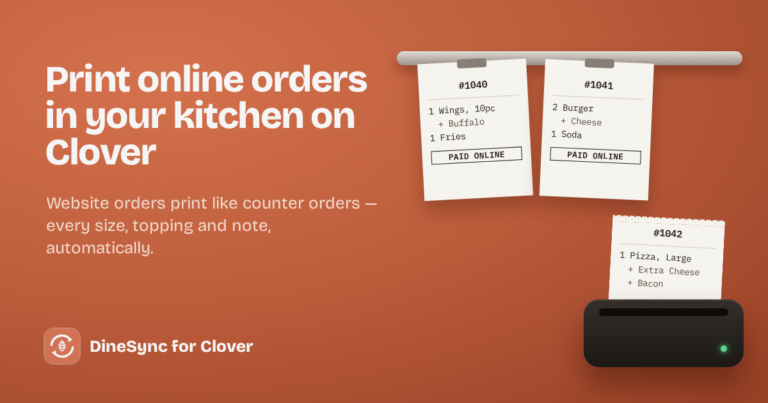
When a customer pays, the order goes to your Clover with every selection attached to the right item. The kitchen ticket prints the way your cooks already read counter orders:
1 Hand Made Pizza
    Large
    + Extra Cheese
    + Bacon
Quantities work too. If a customer orders two of the same pizza, the ticket and your Clover totals both show two — not one.
Big topping lists
Pizza menus often have a lot of options. Forty toppings across several groups is normal, and DineSync handles menus that size. A few tips keep them easy to order from:
Group toppings sensibly. “Meats”, “Veggies” and “Cheeses” are easier to scan than one long list of forty.
Keep names short and clear. “Extra Cheese” reads better on a phone — and on a kitchen ticket — than “Additional Mozzarella Cheese Topping”.
Check prices in both places. A topping priced $2 on the till and $1.50 online costs you money on every order it’s added to.
Place a test order with lots of options. Order your most complicated pizza from your own site and check the ticket with your kitchen before you go live.
Where big menus go wrong
The more options you have, the easier it is for your menu to drift over time:
- a topping gets added twice under slightly different names
- a price changes on Clover but not on your website
- an item is renamed on one side and not the other
None of this breaks ordering on day one. It creeps in over months — and it usually shows up as a customer charged the wrong price, or a cook confused by a ticket.
DineSync Pro keeps a big menu in check
The duplicate finder reports duplicate items and modifiers, price mismatches between linked products, and links pointing at items that no longer exist. It changes nothing on its own — it shows you exactly where to look.
Automatic menu sync brings Clover changes onto your website by itself, as often as every five minutes — so a topping price you change at the counter doesn’t stay wrong online.
A preview before bulk pushes shows you exactly what will change on your Clover before it changes, so a big menu update doesn’t bring surprises.
Pro costs $69.99 a month or $499.99 a year, with a 14-day free trial and no card needed.
Get started
Install DineSync for Clover free → https://wordpress.org/plugins/dinesync-for-clover/
Try DineSync Pro free → https://monirtechsolutions.com/plugins/dinesync-for-clover/get-pro/?utm_source=blog&utm_medium=article&utm_campaign=modifiers