Building an online menu by hand is slow, and it’s where mistakes creep in: a price typed wrong, a size forgotten, a topping missing. If your menu already lives in Clover, you shouldn’t have to type it all again.
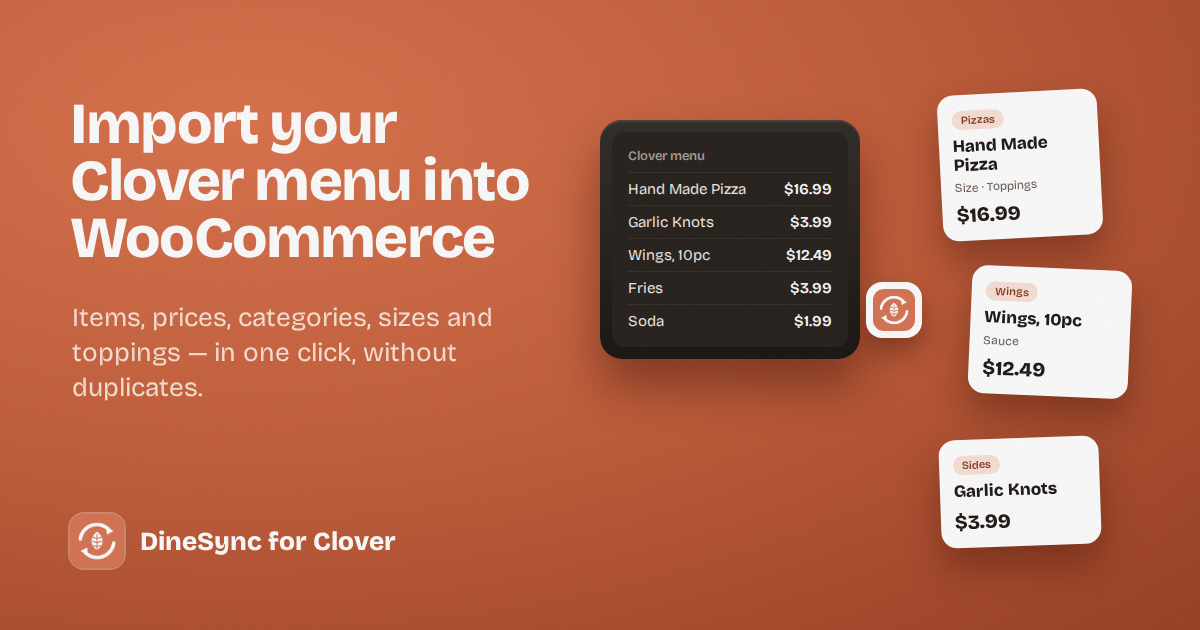
This guide shows you how to import your Clover menu into WooCommerce in one click — items, prices, categories, sizes and toppings — and how to do it without creating duplicates on a website that already has products.
What comes across
When you import your Clover menu into WooCommerce with DineSync for Clover, each item arrives as a WooCommerce product with:
- its name, price and SKU
- its category, created on your website if it doesn’t exist yet
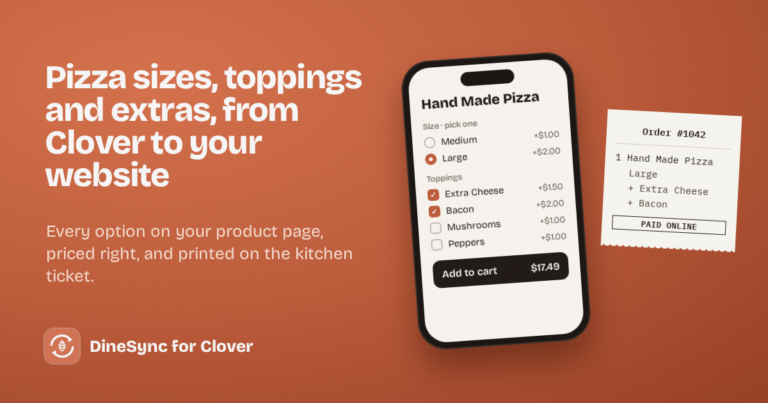
- its modifier groups — sizes, toppings, extras — which show on your product page as real options, with the price updating as the customer chooses
- its stock count, if the item tracks stock in Clover and you’ve left the Stock setting on
Items you’ve hidden in Clover are skipped, so they don’t appear online by accident.
What doesn’t come across: photos. Clover doesn’t make item images available to other systems, so pictures are managed in WooCommerce. Adding a good photo to your best sellers is worth the effort — it makes a real difference to online orders.
Before you start
You’ll need DineSync for Clover installed and connected to your Clover account. If you haven’t done that yet, our setup guide walks you through it in about fifteen minutes.
It’s also worth tidying your Clover menu first. Whatever is in Clover is what your website will show, so fix any odd item names, old prices or leftover test items now.
If your website is new: import straight away
- In WordPress, go to DineSync → Settings.
- Scroll to Inventory Actions and press Import from Clover.
- Wait a few seconds. DineSync reports how many products it created and updated.
That’s it. Visit your shop page to check the menu looks right.
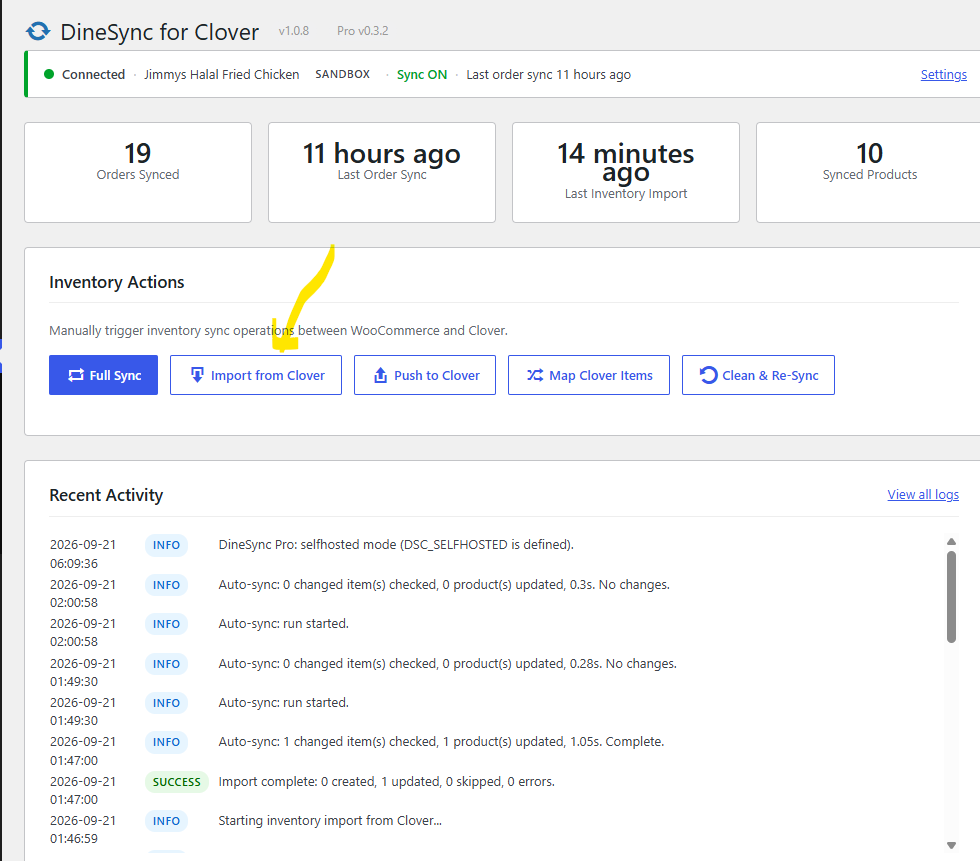
If your website already has products: map first
If you’ve already built products in WooCommerce, you don’t want Clover to create a second copy of each one. So link them first:
- Press Map Clover Items. DineSync matches your existing WooCommerce products to Clover items — by SKU first, then by name — and links each pair.
- Check the result: it tells you how many were matched and how many had no match.
- Then press Import from Clover. Linked products are updated, and anything Clover has that your website doesn’t is created.
Running the import again later is safe. Products that are already linked are updated rather than duplicated.
A note about product descriptions
DineSync writes a short description only when it first creates a product. After that, it leaves your descriptions alone — so if you rewrite them on your website, the next import won’t overwrite your wording.
If something goes wrong
Duplicates appeared. This usually happens when an existing product’s name or SKU didn’t quite match its Clover item. Delete the duplicates, run Map Clover Items to link the originals, and import again.
The mapping has become a mess. Clean & Re-Sync clears the links between your website and Clover without deleting any product or order. You can then map and import from a clean start.
The import brought nothing in. Check that your Clover items aren’t hidden, and look at DineSync → Sync Logs for the reason.
The part the import doesn’t solve: keeping it current
Importing your Clover menu into WooCommerce is a one-time job. Keeping it current isn’t.
Every time you change a price, add a special, or take an item off on your Clover, your website stays as it was until someone presses Import again. On a busy week, that’s easy to forget — and every day it’s forgotten, your website shows the wrong price.
Menus also drift over time. A topping gets added twice. An item is renamed on one side but not the other. Prices stop matching between the two systems.
DineSync Pro keeps your menu matching for you
Automatic menu sync. Pro checks Clover for changes on a schedule you choose — every 5, 15, 30 or 60 minutes — and brings them into WooCommerce by itself. If a check fails, it holds its place and tries the same changes again rather than skipping them.
The duplicate finder. A report of duplicate items and SKUs, price mismatches between linked products, duplicate modifiers, and links pointing at items that no longer exist. It changes nothing on its own — it tells you where to look.
A preview before bulk pushes, so you see exactly what will change on your Clover before it changes.
Pro costs $69.99 a month or $499.99 a year, with a 14-day free trial and no card needed.
Get started
Install DineSync for Clover free → https://wordpress.org/plugins/dinesync-for-clover/
Try DineSync Pro free → https://monirtechsolutions.com/plugins/dinesync-for-clover/get-pro/?utm_source=blog&utm_medium=article&utm_campaign=menu-import