An online order is only useful once your cooks can see it. If orders arrive in an inbox or on a tablet by the register, someone has to notice them, read them out, or rewrite them — and on a busy night, that’s where orders get delayed or lost.
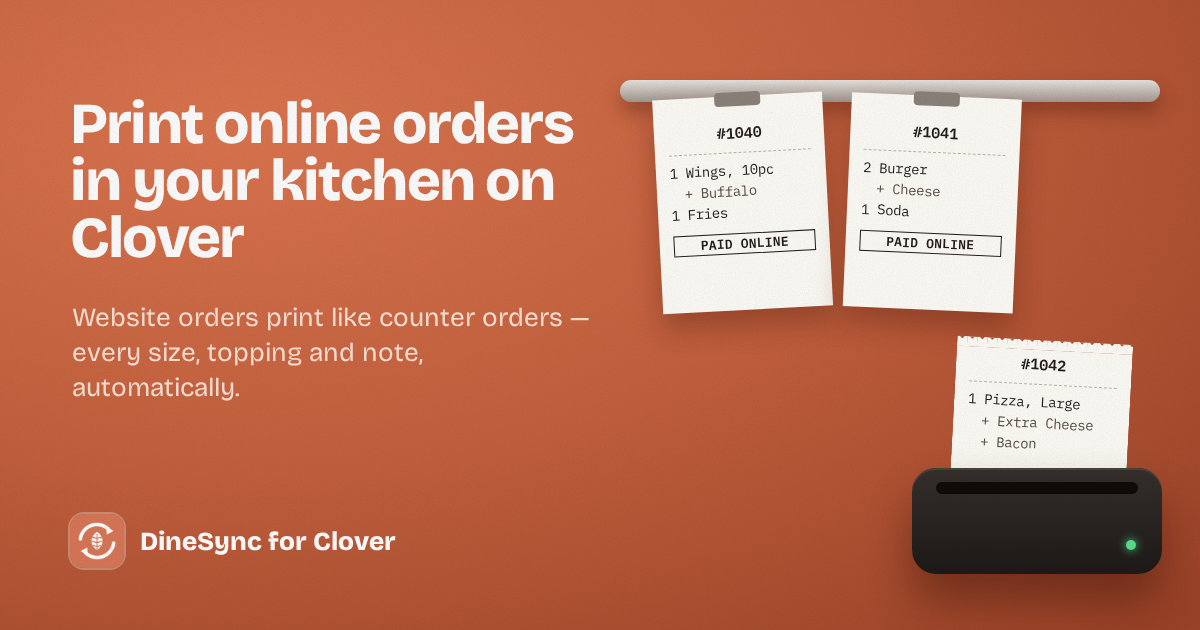
The fix is to print online orders on Clover automatically, the same way counter orders already print. This guide covers how to set it up with a WooCommerce website, how to choose the right printer, and what to check when a ticket doesn’t come out.
Why printed tickets still matter
Screens are fine for the front of house. The kitchen runs on paper for good reasons: a ticket can hang on the rail, be read at a glance from across the line, and be crossed off as each item goes out. It doesn’t need anyone to wake a tablet or scroll.
When online orders print exactly like counter orders, your kitchen doesn’t need a separate process for them. An order is an order.
What you need
- A Clover POS with a kitchen printer set up in Clover
- A WooCommerce website taking orders
- DineSync for Clover, connected to your Clover account — if you haven’t done this yet, follow our setup guide first
How to turn on automatic printing
In WordPress, go to DineSync → Settings and scroll to Order Settings.
- Tick Print orders on Clover kitchen printer automatically.
- Click the refresh button next to the printer list. DineSync loads the printers from your Clover account.
- Choose your kitchen printer.
- Save your settings.
From now on, when a customer pays on your website, the order goes to your Clover and prints on that printer straight away — with every item, size, topping and note, exactly as the customer ordered it.
Automatic printing is off until you switch it on, so nothing prints by surprise while you’re still setting up.
Which orders print, and when
Paid orders print as soon as they’re paid. A declined card never prints a ticket, so your kitchen doesn’t cook food nobody paid for. An order that needs 3-D Secure prints once the customer has confirmed the payment.
Cash on delivery, bank transfer and cheque orders print when you accept them. You need to cook them, so they reach the kitchen — but Clover isn’t told a payment arrived until it actually has.
Tips for a smooth kitchen
Assign online orders to an employee. In the same Order Settings, pick a default employee. Online orders then show up separately from counter orders in your Clover reports, which makes it easy to see how much your website is bringing in.
Check your menu first. Tickets are only as good as your menu. If your sizes and toppings are set up as modifier groups in Clover, they print underneath each item, the way your cooks are used to reading them.
Place a test order before you go live. Order something small from your own site and check the ticket with whoever runs your kitchen. It’s much easier to adjust item names on a quiet afternoon than in the middle of service.
When a ticket doesn’t print
If an online order didn’t print, the cause is almost always one of three things.
1. The printer itself. It’s out of paper, switched off, or offline. Print a test from Clover. If Clover can’t print either, the problem is the printer, not the website.
2. The printer setting. Check that automatic printing is ticked and the right printer is selected in DineSync. If you’ve replaced or renamed a printer in Clover, refresh the printer list and choose it again.
3. The order never reached Clover. This is the one that matters most. If the order isn’t on your Clover at all, there was nothing to print. Open the order in WooCommerce and look at the DineSync panel: it shows whether the order synced, and if not, why — with a button to send it again.
The sync log under DineSync → Sync Logs records every order sent, so you can check exactly what happened and when.
The failure nobody sees
The first two problems announce themselves: someone notices the printer is off. The third doesn’t. When an order never reaches Clover, the kitchen stays quiet, and there’s nothing to tell anyone something is wrong — until the customer walks in for food nobody made.
A failed order is never lost silently in DineSync. It’s recorded on the order with the reason. But on a busy night, nobody is opening orders to check.
DineSync Pro: know the moment an order doesn’t arrive
DineSync Pro watches for exactly that failure:
- An email when an order doesn’t reach your Clover — to you and whoever’s on shift, with a link straight to the order
- One-click retry, or Retry all if several failed together
- No duplicates — if an order already reached Clover, Pro won’t send it twice
Pro also keeps your website menu matching Clover automatically and shows a preview before bulk menu changes.
It costs $69.99 a month or $499.99 a year, with a 14-day free trial and no card needed.
Get started
Install DineSync for Clover free → https://wordpress.org/plugins/dinesync-for-clover/
Try DineSync Pro free → https://monirtechsolutions.com/plugins/dinesync-for-clover/get-pro/?utm_source=blog&utm_medium=article&utm_campaign=kitchen-printing