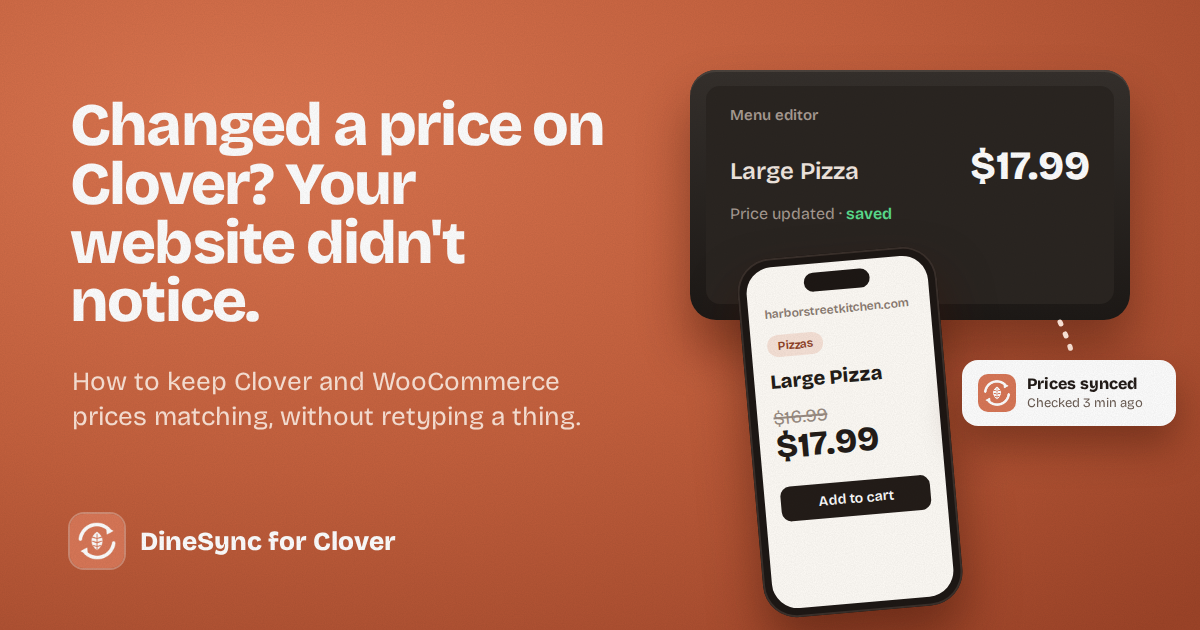
Your supplier puts up the price of cheese, so you raise your large pizza by a dollar on the Clover at the counter. Three days later, a customer points out that your website still charges the old price. If you’ve ever needed to sync Clover prices with WooCommerce, you know this moment — and you’ve probably been selling that pizza online at a loss since Monday.
It happens to almost every restaurant that runs a website alongside a POS. Nothing is broken. It’s simply how the two systems work until you connect them properly.
Why your website and Clover show different prices
Your Clover POS and your WooCommerce website each keep their own copy of your menu. When you change a price on Clover, you’re changing Clover’s copy. Your website has no way of knowing unless something tells it.
Without an integration, that something is you — logging into WordPress and editing each product by hand. On a busy week, that’s easy to forget, and the longer it’s forgotten, the further the two menus drift apart.
How to sync Clover prices with WooCommerce in one click
With DineSync for Clover installed, you don’t retype anything. Go to DineSync → Settings and press Import from Clover.
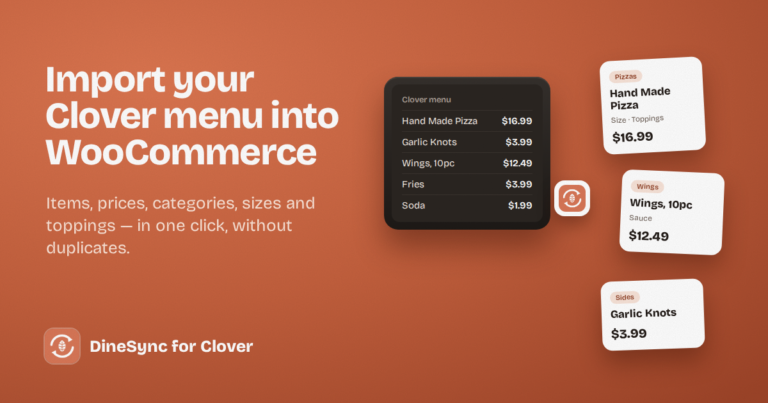
DineSync reads your current Clover menu and updates your website to match: names, prices, categories, and modifier groups like sizes and toppings. Products you already have are matched by SKU or by name, so importing again never creates duplicates. A new item you’ve added on Clover arrives the same way, created on your website with its price and category.
The whole import usually takes a few seconds.
It works the other way too
If you’d rather manage prices on your website, that works as well. When you save a product in WooCommerce, DineSync sends the change to Clover — only the fields you actually changed, so nothing else on the till is touched.
Most restaurants pick one place to manage their menu and let DineSync keep the other in step. Either works. Editing both without a plan is how prices drift.
The catch: someone has to remember
The free plugin imports when you press the button. That’s fine if you change prices once a month and always remember to import afterwards.
It’s harder if:
- you run daily specials and change prices often
- more than one person edits the menu on Clover
- the person who changes prices isn’t the person who runs the website
- you’re busy — which, running a restaurant, you are
Every day between a price change on the till and the next import is a day your website shows the wrong number.
What a stale price costs
Say you raise a popular item by $1, and it sells 15 times a week online. If your website keeps the old price for two weeks, that’s $30 lost — on one item, from one forgotten import.
A price that’s too high costs you differently: the customer sees one price online and another at the counter, and starts wondering which one to trust.
Across a full menu over a year, missed imports add up to real money.
Let DineSync Pro keep prices matching automatically
DineSync Pro checks your Clover menu for changes on a schedule and brings them into WooCommerce by itself. Change a price on the till, and your website picks it up on the next check — no button, no remembering.
You choose how often it checks: every 5, 15, 30 or 60 minutes. There’s also a Run once now button for when you’ve just changed something and want it on the website straight away.
It doesn’t skip changes when something goes wrong. If Clover has a hiccup during a check, Pro holds its place and tries the same changes again on the next run, rather than moving on and losing them. If it keeps failing, the sync log tells you so plainly.
One thing to know: Pro runs on WordPress’s built-in scheduler, which wakes up when someone visits your site. On a quiet site that can mean longer gaps between checks. If timing matters to you, ask your web host to set up a real cron job — it takes them a few minutes, and Pro will then run exactly on schedule.
Pro costs $69.99 a month or $499.99 a year, and it includes failed-order alerts and a preview before bulk menu changes too.
Getting started
If you take orders on your own WooCommerce website and run Clover at the counter, start with the free plugin. One click brings your whole Clover menu across, and saving a product sends your change back to the till.
Install DineSync for Clover free → https://wordpress.org/plugins/dinesync-for-clover/
When you’d rather not be the one remembering to import, add Pro. There’s a 14-day free trial, and no card is needed.
Try DineSync Pro free → https://monirtechsolutions.com/plugins/dinesync-for-clover/get-pro/?utm_source=blog&utm_medium=article&utm_campaign=price-sync