A customer orders dinner from your website at 6:40 on a Friday. Their card is charged. They get a confirmation email. They drive over at 7:05 expecting their food.
Nobody in your kitchen has heard of the order.
This is the failure every restaurant owner who takes online orders worries about, and it’s worth understanding properly — because it’s rare, it’s fixable, and the difference between a small problem and a lost customer is usually just how fast you find out.
Why an order might not reach Clover
When a customer pays on your WooCommerce website, DineSync sends the order to your Clover account. Most of the time that takes a couple of seconds. But it depends on two systems talking to each other over the internet, and a few things can interrupt that conversation:
Clover is having trouble at their end. Clover’s servers occasionally slow down or return errors, usually briefly. If your order arrives during one of those moments, Clover can’t accept it.
Your connection to Clover has expired. DineSync connects using an API token from your Clover dashboard. If that token is removed or its permissions change, Clover will refuse new orders until it’s replaced.
The request takes too long. If Clover doesn’t answer within the time limit, the order is treated as not sent rather than left hanging.
None of these are caused by anything you did. They’re the ordinary hiccups of any system that depends on the internet.
What an order that failed looks like
This is the important part: a failed order is never lost silently.
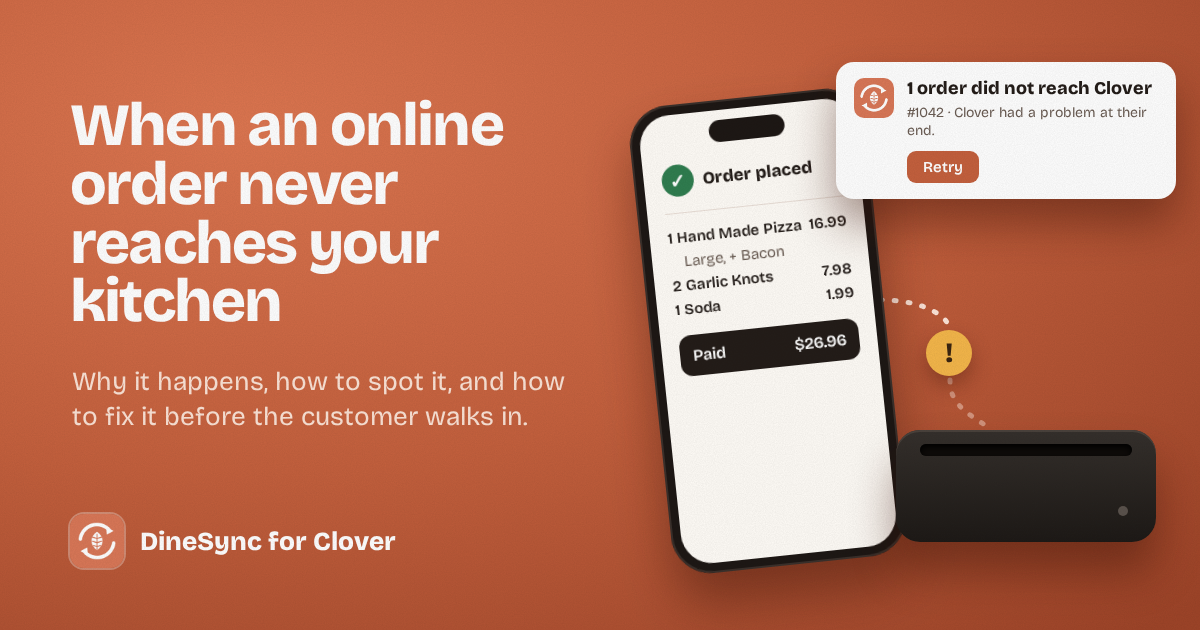
When DineSync can’t send an order to Clover, it records the failure on the order itself. Open the order in WooCommerce and you’ll see a DineSync panel showing the status as failed, with a plain-language reason — “Clover had a problem at their end”, for example — and a Sync to Clover button to send it again.
The failure is also written to the DineSync sync log, with a timestamp, so you can see exactly when it happened.
A declined card is not a failed order
One thing worth knowing: if a customer’s card is declined, the order is meant to stay out of Clover. DineSync only sends orders once they’re paid, so a declined card never prints a ticket for food nobody paid for. That’s working as intended, not a failure — and the log says so in plain words.
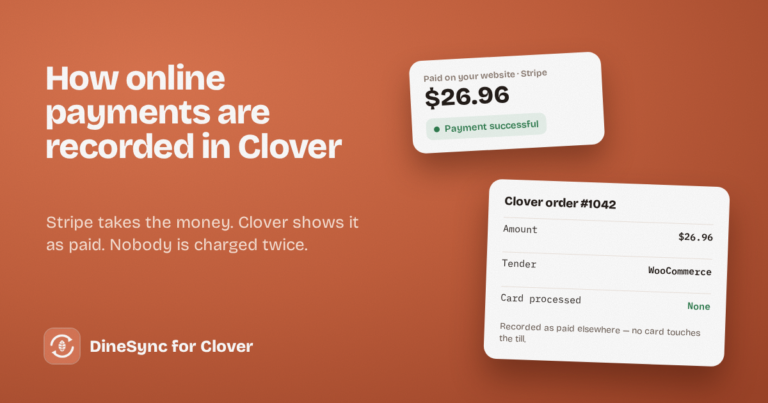
Orders paid by cash on delivery, bank transfer or cheque are different again. Those reach your kitchen as soon as you accept them, because you need to cook them, but Clover isn’t told a payment arrived until it actually has.
How to fix a failed order
- Open the order in WooCommerce and look at the DineSync panel for the reason.
- Fix the cause if there is one. If it says your connection has expired, reconnect in DineSync settings. If it says Clover had a problem, there’s usually nothing to fix — just wait a moment.
- Check Clover first if the order timed out. Occasionally Clover accepts an order but the reply gets lost on the way back. Before retrying an order that timed out, take a quick look in Clover to make sure it isn’t already there, so you don’t send it twice.
- Press Sync to Clover. The order goes through, and the ticket prints if you have auto-print on.
The whole thing takes under a minute — once you know the order failed.
The real problem: finding out in time
Here’s the catch. The failed-order panel only helps if someone opens the order. On a quiet Tuesday afternoon, you might. On a Friday rush, with tickets coming in and a line at the counter, nobody is opening WooCommerce to check.
So the question isn’t really whether you can fix a failed order. It’s whether you find out before the customer walks in.
What one missed order actually costs
Say your average online order is $40, and one goes astray once a week on a busy night.
That’s the $40 you refund or remake, roughly $160 a month. And it leaves out the part that matters more: a customer who stood at your counter while you looked for an order you never received. Some of them won’t order online from you again.
How DineSync Pro catches it for you
DineSync Pro watches for failed orders so you don’t have to.
It emails you when an order doesn’t reach Clover. You can send alerts to more than one address — yourself and whoever’s running the shift — and several failures close together arrive as one message rather than a flood.
You retry from the email’s link or the Pro screen. One click sends the order again. If several failed, Retry all sends them together.
It won’t create duplicates. If an order has already reached Clover, Pro refuses to send it a second time and tells you so, naming the Clover order it already created.
Pro costs $69.99 a month, or $499.99 a year. Against a single missed order a week, it pays for itself in the first two weeks.
Getting started
If you run a restaurant on Clover and take orders on your own WooCommerce website, start with the free plugin. It sends paid orders to your Clover and prints them in your kitchen, and it will show you any order that fails.
Install DineSync for Clover free → https://wordpress.org/plugins/dinesync-for-clover/
When you’d rather not be the one watching for failures, add Pro. There’s a 14-day free trial, no card required.
Try DineSync Pro free → https://monirtechsolutions.com/plugins/dinesync-for-clover/get-pro/?utm_source=blog&utm_campaign=order-fails